
Lasernet Connector Backups and Deployments
There are two places to take backups from in the Lasernet Connector in D365 F&O:
- A full configuration backup can be taken from the Module list page: Lasernet/Common/Backup/Export Lasernet backup
- A reports-specific backup can be taken from the Reports list page: Lasernet/Common/Reports -> Setup/Export report backup
A full configuration backup is recommended to be taken monthly or bi-monthly if updates are not being worked on. When selecting tables for the export if you include the Lasernet Log or the Metadata lookup table in your export file, it will make the file larger. This causes the upload time to be a little slower but otherwise does not cause issues.
When exporting a full backup, the following options are recommended to be left out:
- Lasernet Metadata (LTA) template
- Lasernet Log
- Document Value
- Reference
- Metadata lookup table
Here are the recommended selections when doing a standard report deployment to PROD (update-not a new report):
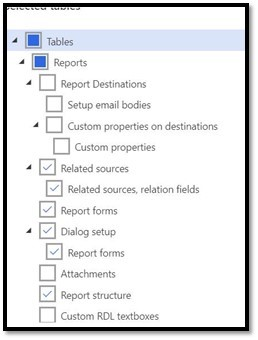
The reason we are recommending unchecking the Report Destinations section is based on if there are predefined printing settings – overriding the Report Destinations in PROD could cause issues as Printer identifiers are different per environment. If there are additional things to deploy for specific reports, those should be handled on a case-by-case basis.
The importing portion of the process is the most important. Be very careful on your selection when importing. You should NOT select something when importing that has NOT been included in your export file. If an object is selected for import that wasn’t included in export, the existing settings will be erased and replaced with nothing.
Example: If you mark ‘Report destinations’ in import but your Export file doesn’t have destinations, then it deletes the destinations for that report out of the environment.
You should NOT pull over the Lasernet Log or a Metadata table. Additionally, it is rare that you would want to override printers, Azure settings, Lasernet settings, etc. in a Production environment. Only select these overall Connector settings when taking a full backup or importing into a DEV or UAT space after a data refresh.
Predefined-Selections for Backups
Predefined parameters can be set up for both types of backups. Begin by navigating to Lasernet/Setup/Backup parameters/Setup Default Selections and then follow the below steps:
- Increase the size of the left side so you can see all of the fields like the screenshot below
- Click New
- Choose a class ID
- Enter in a name for the selection in the Predefined Selection column
- Enter in a Description (optional)
- Click Save (this will cause the class name and the Default selection to appear
- Add Company account ID from the dropdown
- Select the checkboxes for all tables you want to be included
- Click Save
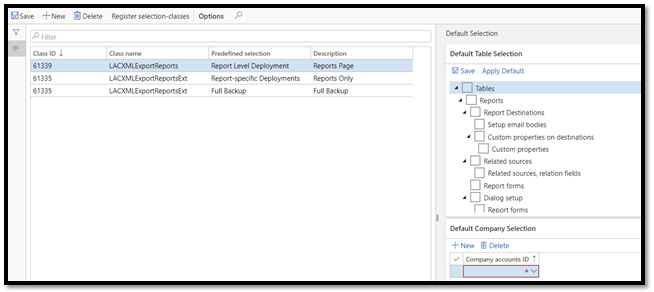
**In the above screenshot, the first selection is specific to the Reports page and the other two are setup for the full configuration but for two different purposes.
These Predefined Selection settings can be moved from one environment to another, so you only need to set them up once!